Artwork Studio
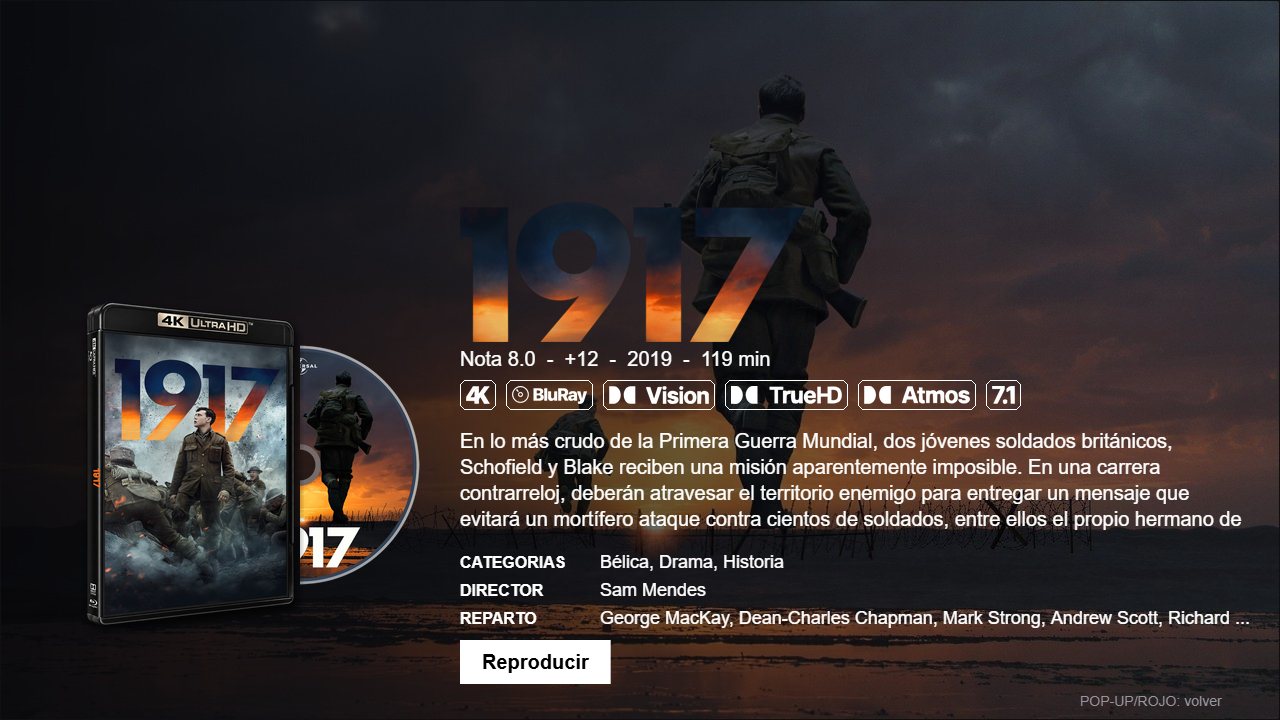
Artwork Studio decides how each movie looks on the Chinoppo: the wall poster with its format banner, the 4K or Blu-ray case on the movie page with its disc, the backdrop and the logo. It installs by itself with the Biblioteca; this guide shows how to use it. Its screens are in Spanish, so each button is given with its meaning.
Before you start
- Open it at
http://NAS-IP:3001, or from the Abrir Artwork Studio link on the Biblioteca’s:8095page. - For discs and more posters to pick from you need your free fanart.tv key in
FANART_API_KEYincompose.yaml(steps 2 and 6 of the main guide). Without it everything else works, but you only get TMDb posters and no discs. - Everything you apply is stored in the Biblioteca. To see the result without switching the Chinoppo on, use the Vista previa (preview) on the
:8095page. - Your movie files are never touched: only the images the Biblioteca shows change.
Your keys: TMDb and fanart.tv
Artwork Studio needs two free keys. Get them once:
- TMDb (posters, backdrops, logos and each movie’s information: plot, cast, year, rating): create an account at themoviedb.org, open your profile → Settings → API and copy the API Key.
- fanart.tv (more posters to pick from, and the discs): create an account at fanart.tv and copy your Personal API Key from your profile.
Where to put them (recommended): in compose.yaml when installing (step 6 of the main guide): TMDb in TMDB_API_KEY and fanart.tv in FANART_API_KEY. That way they work on any PC or phone you open Artwork from.
Or from Artwork: the Ajustes (settings) button, top right. There you also switch the language (Spanish or English). Type the missing key and press Guardar y Recargar (save and reload). This window opens by itself when Artwork can’t find the TMDb key.
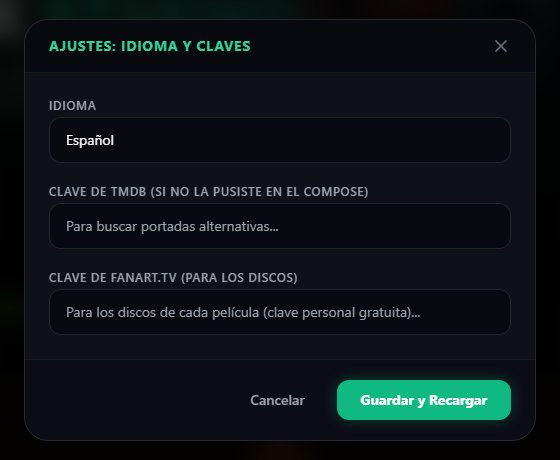
Note: keys typed in Settings are stored only in that browser. Opening Artwork from another PC or your phone means typing them again, which is why compose.yaml is better.
Steps
Pick the movie
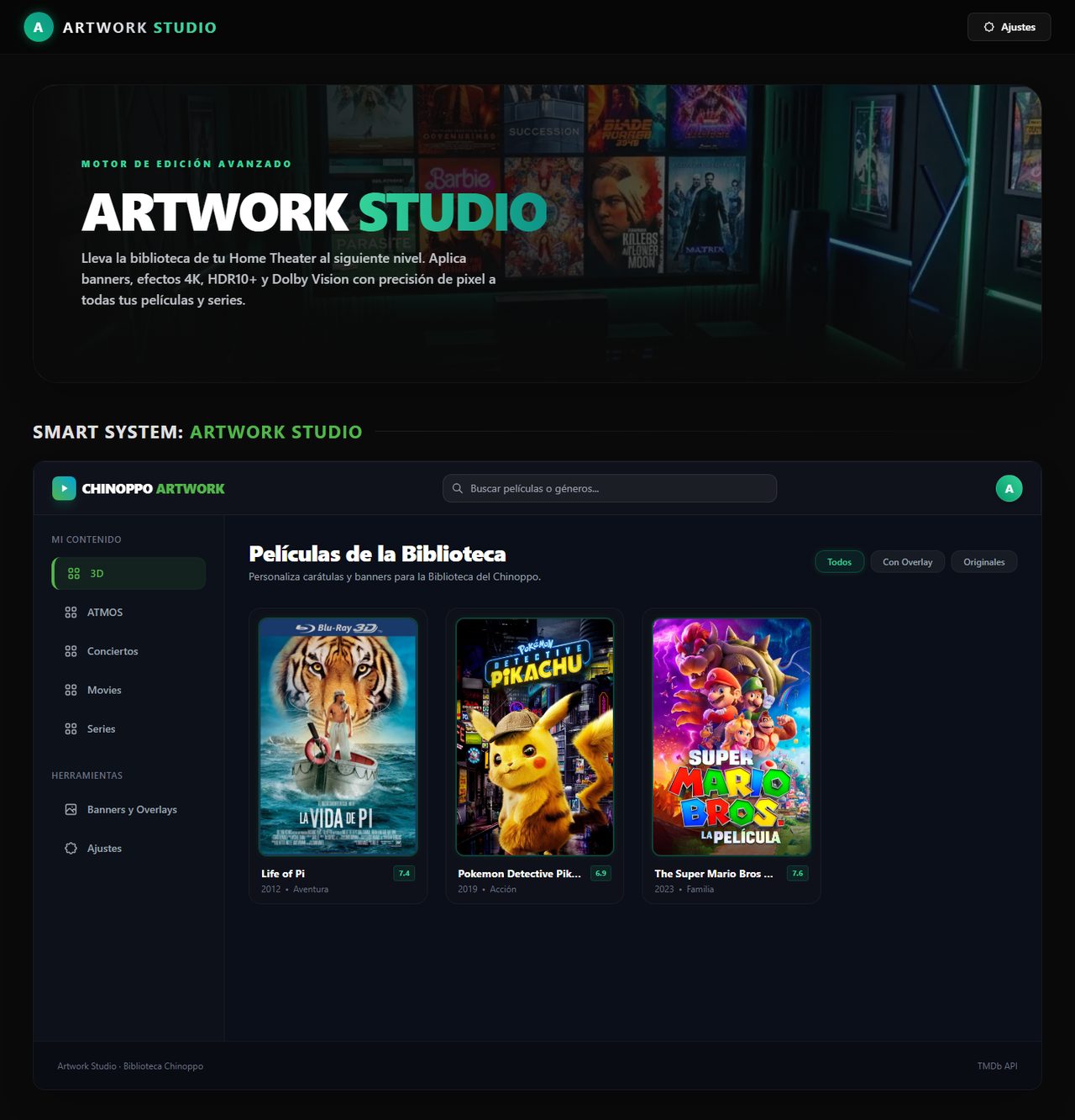
Main screenOn the left, under Mi contenido (my content), are the same sections as your Biblioteca menu (ATMOS, Movies, Series…). Pick one and click the movie. At the top are the search box and the filters Todos (all), Con Overlay (with a banner) and Originales (without).
Poster, banner and case
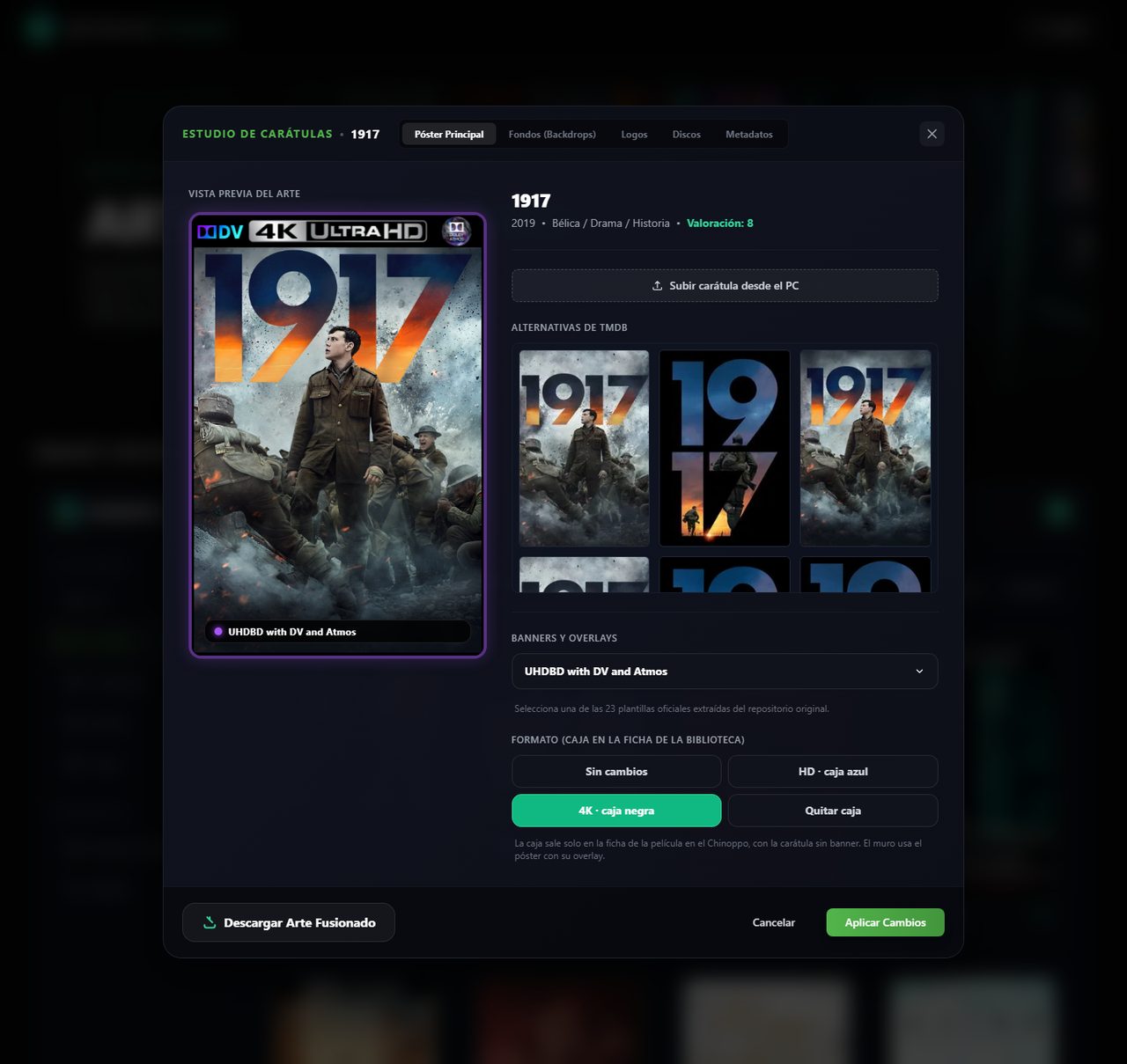
Póster Principal tab (main poster)- Poster: pick one from the Alternativas: TMDb ones first, then fanart.tv ones (tagged “fanart”, if you set that key). Or use Subir carátula desde el PC (upload from PC) for your own.
- Banners y overlays: the band across the top of the poster (e.g. “UHDBD with DV and Atmos”). Artwork suggests the one matching the format the Biblioteca detected; change it or pick “Sin Overlay” (none). The banner shows on the wall.
- Formato (case): 4K · caja negra (black 4K case) or HD · caja azul (blue Blu-ray case). The case shows on the movie page with the poster without banner, and with a case the disc slides out of the box. Quitar caja removes it, Sin cambios keeps the current one.
- Descargar Arte Fusionado downloads the poster with its banner to your PC.
Backdrop
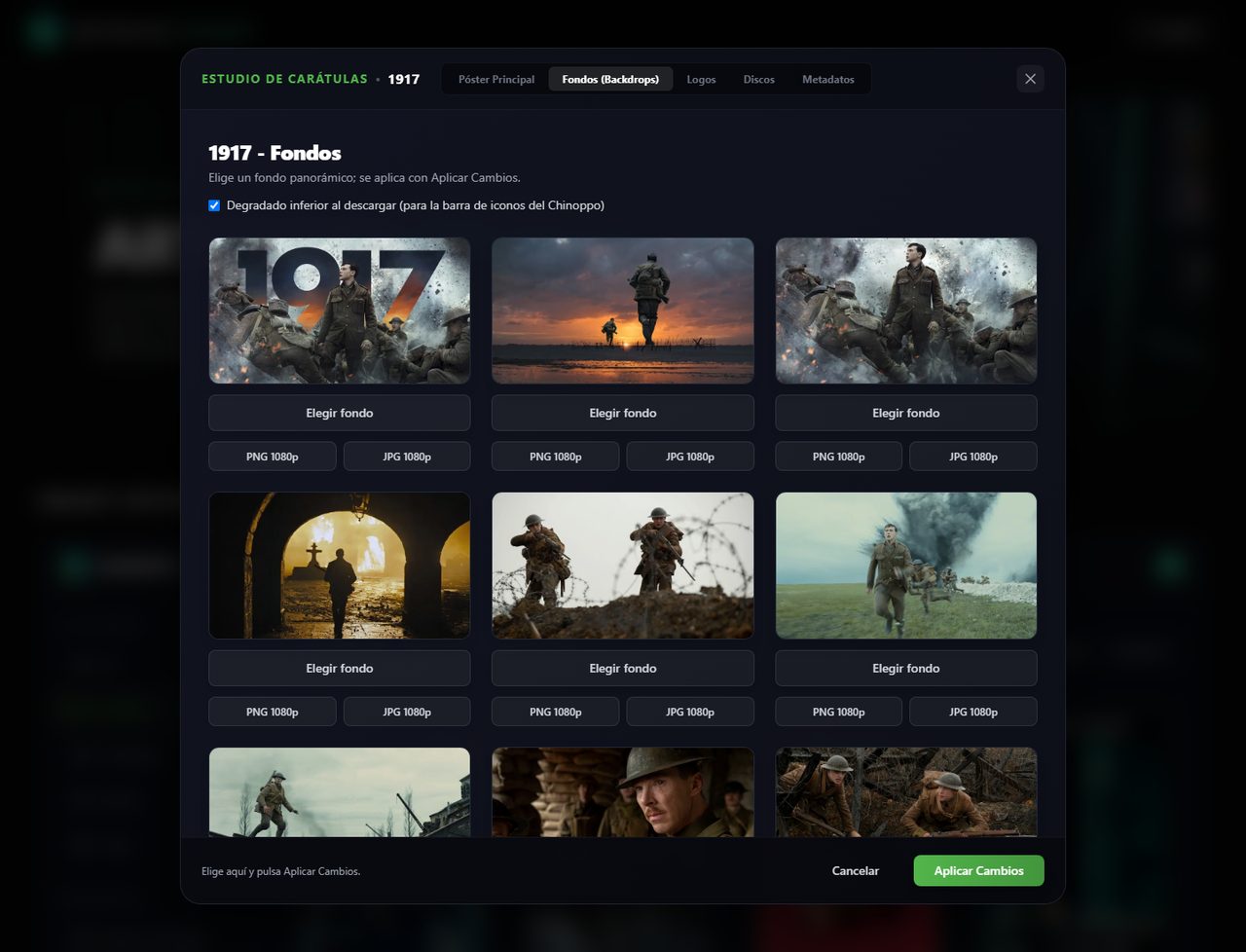
Fondos (Backdrops) tabThe backdrop is the large image behind the movie page. Click Elegir fondo (pick backdrop) on the one you like: it is marked ✓ Elegido (a second click unpicks it). The PNG/JPG 1080p buttons only download it; with the gradient box ticked it comes darkened at the bottom, sized for the Chinoppo icon bar.
Logo
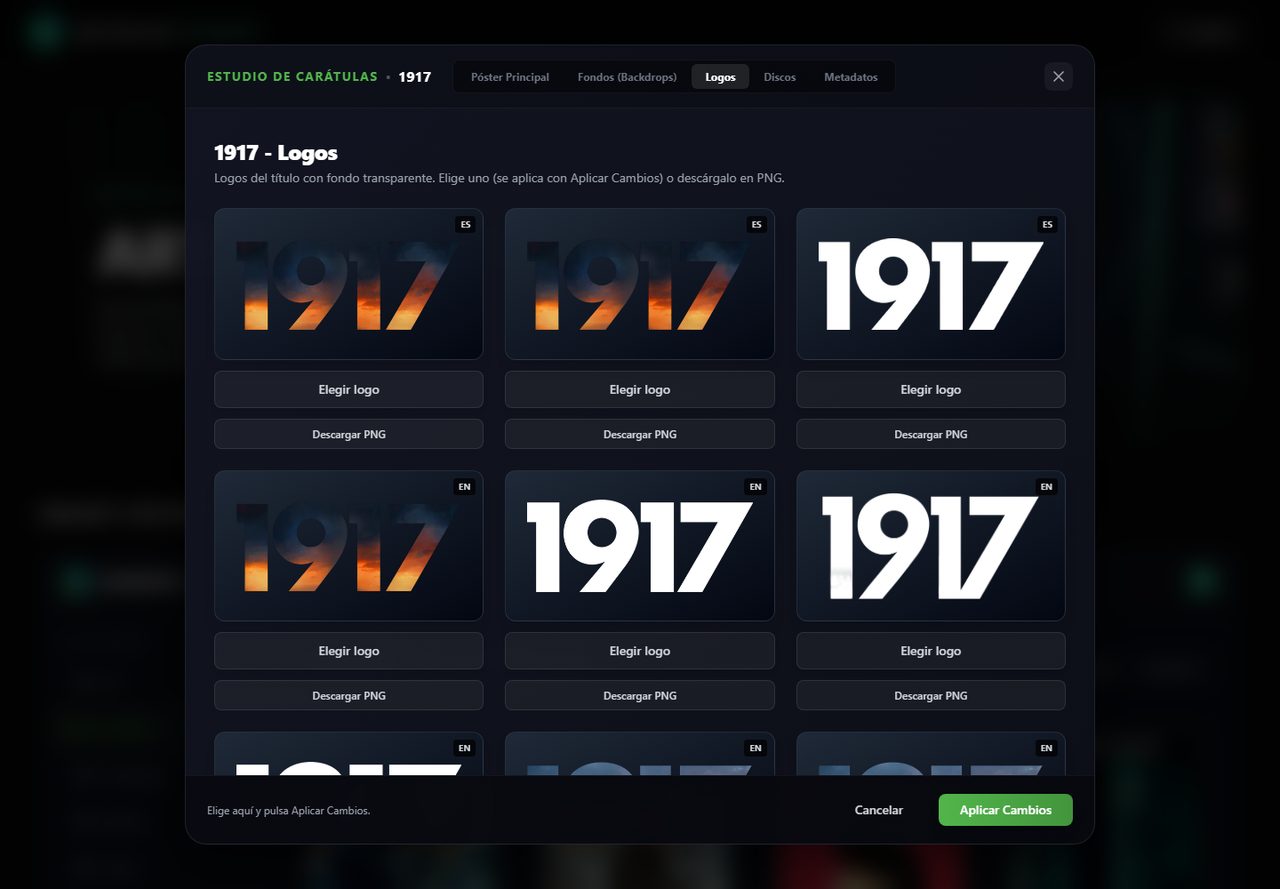
Logos tabThe title logo, with a transparent background, shown on the movie page instead of the written name. Click Elegir logo (pick logo); Spanish ones come first. Descargar PNG downloads it.
Disc
Discos tabThe disc art, from fanart.tv. Click Elegir este disco (pick this disc). It shows on the Chinoppo only if the movie has a case (step 2), because it is the disc that slides out of the box. Discs exist for movies only, not TV shows. If it says the key is missing, check
FANART_API_KEYin the compose.Apply Changes
At the bottom, on any tabWhen you are done, press Aplicar Cambios (apply changes). It applies everything at once: poster, banner, case, backdrop, logo and disc. Left of the button you see what you picked in the other tabs. Cancelar closes without applying.
Done. Open the preview (
:8095) or the Biblioteca on the Chinoppo to see the result.
Format badge style
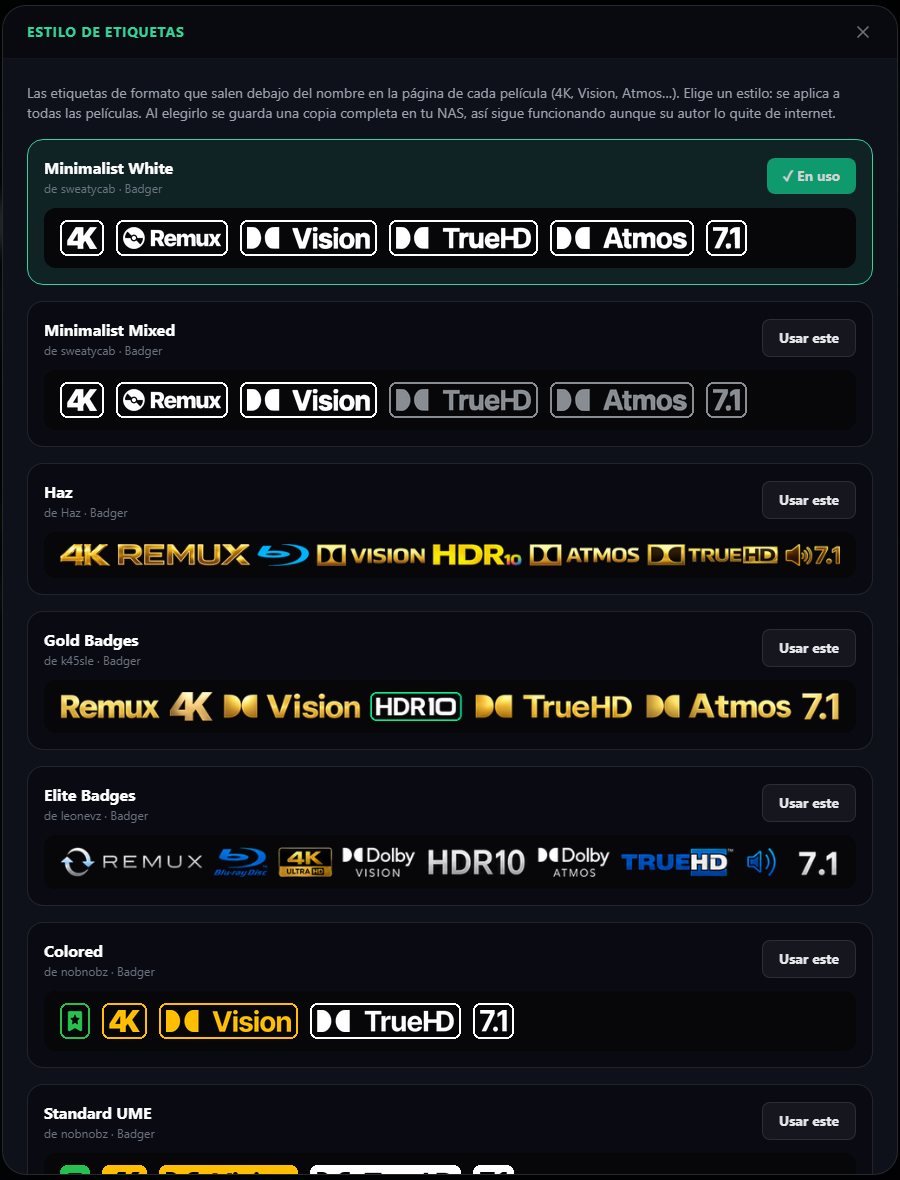
The badges under the title on each movie page (4K, Remux, Vision, TrueHD, Atmos, 7.1…) can use whichever style you like. In the left menu, under Herramientas (tools), open Estilo de etiquetas (badge style): each style shows a sample. Press Usar este (use this) on the one you want and it applies to every movie.
- They are the community templates of Badger, each by its author: Minimalist White and Mixed (sweatycab), Haz, Gold Badges (k45sle), Elite Badges (leonevz), Colored, Standard UME and Minimalistic (nobnobz), RayW1986, BetterFormatter Color and Mono (9mousaa) and NardBadges (vowl313).
- Picking one saves a full copy on your NAS: if its author ever removes it from the internet, yours keeps working.
- Texto (propio) is the Biblioteca's own style and downloads nothing.
TV shows: season posters
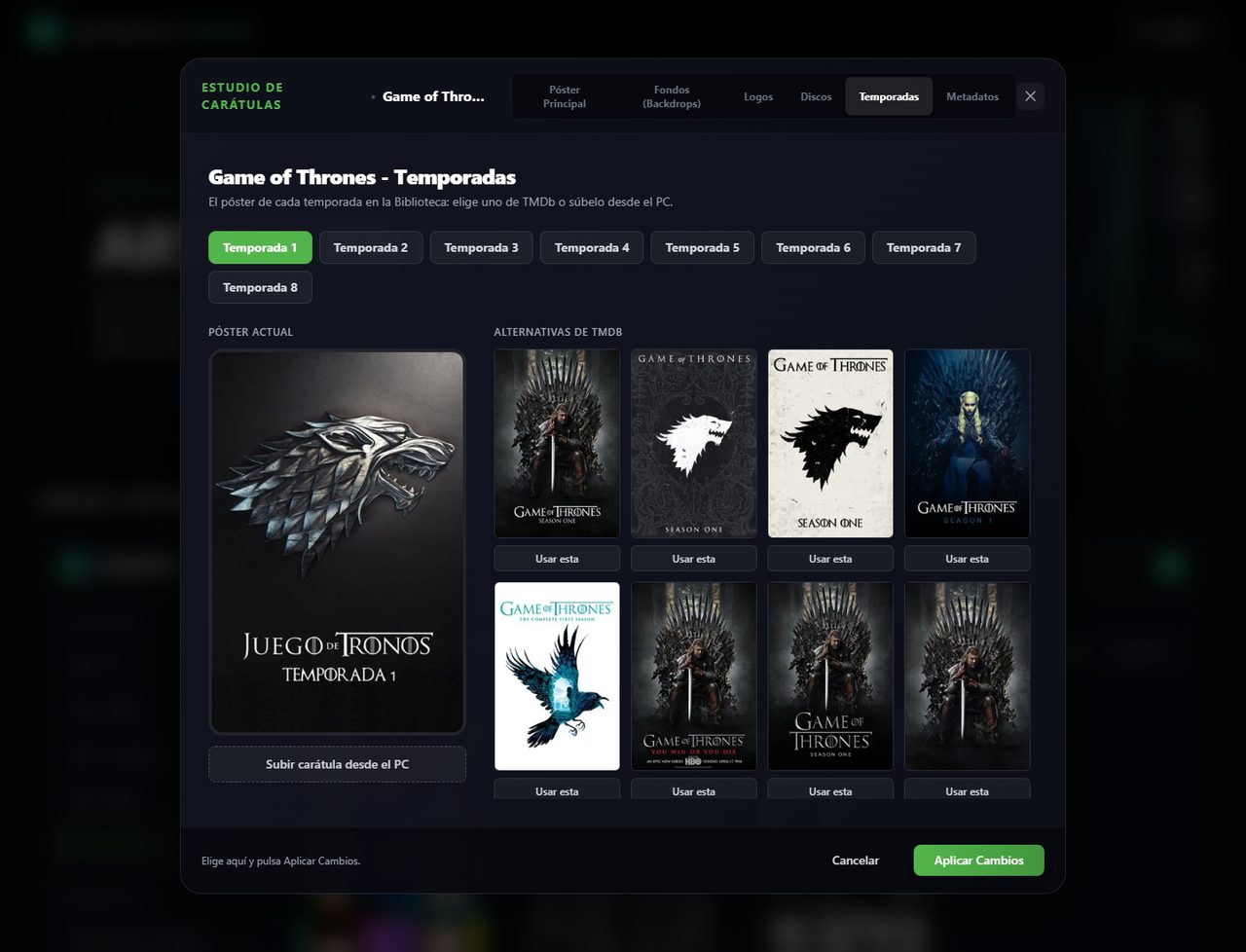
TV shows have a Temporadas (seasons) tab. Pick the season, then a TMDb poster with Usar esta (use this), or upload one from the PC. This one applies right away, without Apply Changes. That poster shows in the show’s seasons row on the Chinoppo.
Wrongly matched movie: Metadata
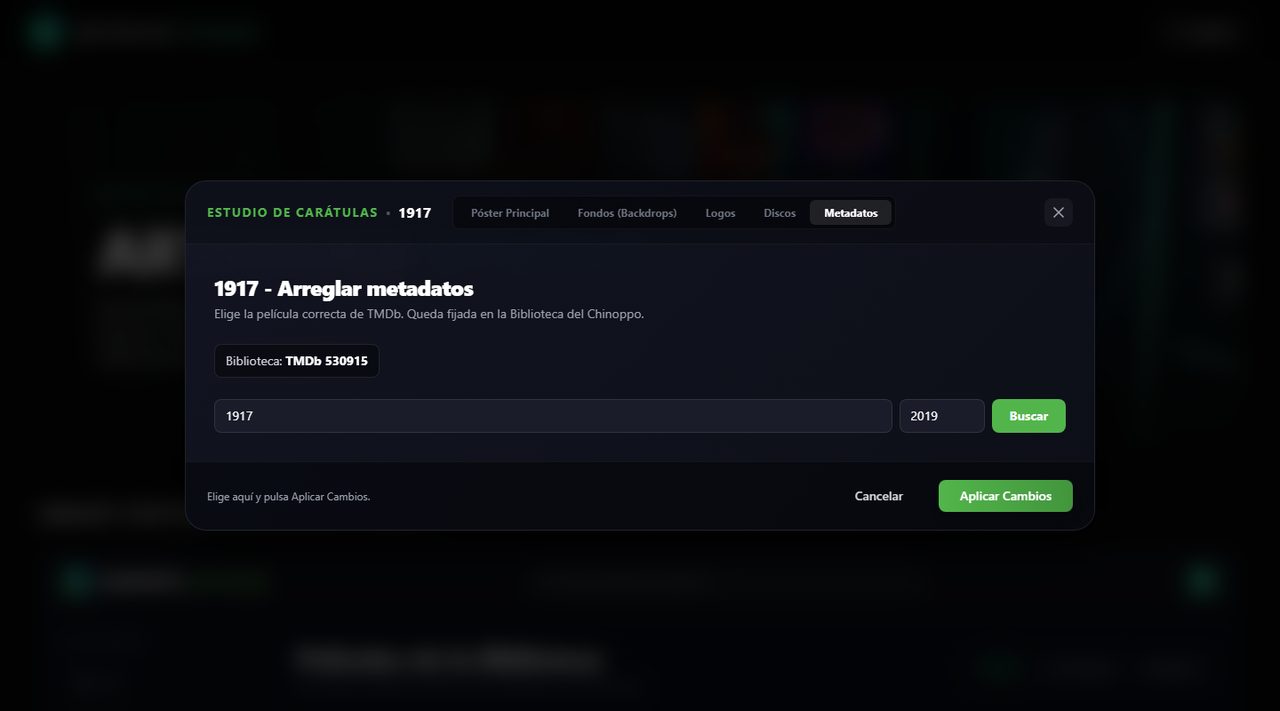
If a movie came out with another one’s poster or plot, open the Metadatos tab, search the title (you can add the year) and click Usar esta on the right one. It stays locked in the Biblioteca and won’t change by itself. This also applies right away.
Good to know
- The banner shows only on the wall, the case only on the movie page
- That keeps the wall tidy and lets the movie page show the case with a clean poster.
- I want to undo it all
- Pick “Sin Overlay” and Quitar caja, then Apply Changes. The movie goes back to its TMDb poster.
- I changed the case photos
- Each movie’s case is made when you apply it: pick the case again and Apply Changes on the movies you want updated.